

Modules
Not every agency uses everything. Two screens decide what this workspace does and what it talks to, and what you switch off disappears from the menu, from the client record and from Settings without a single row of data going anywhere.
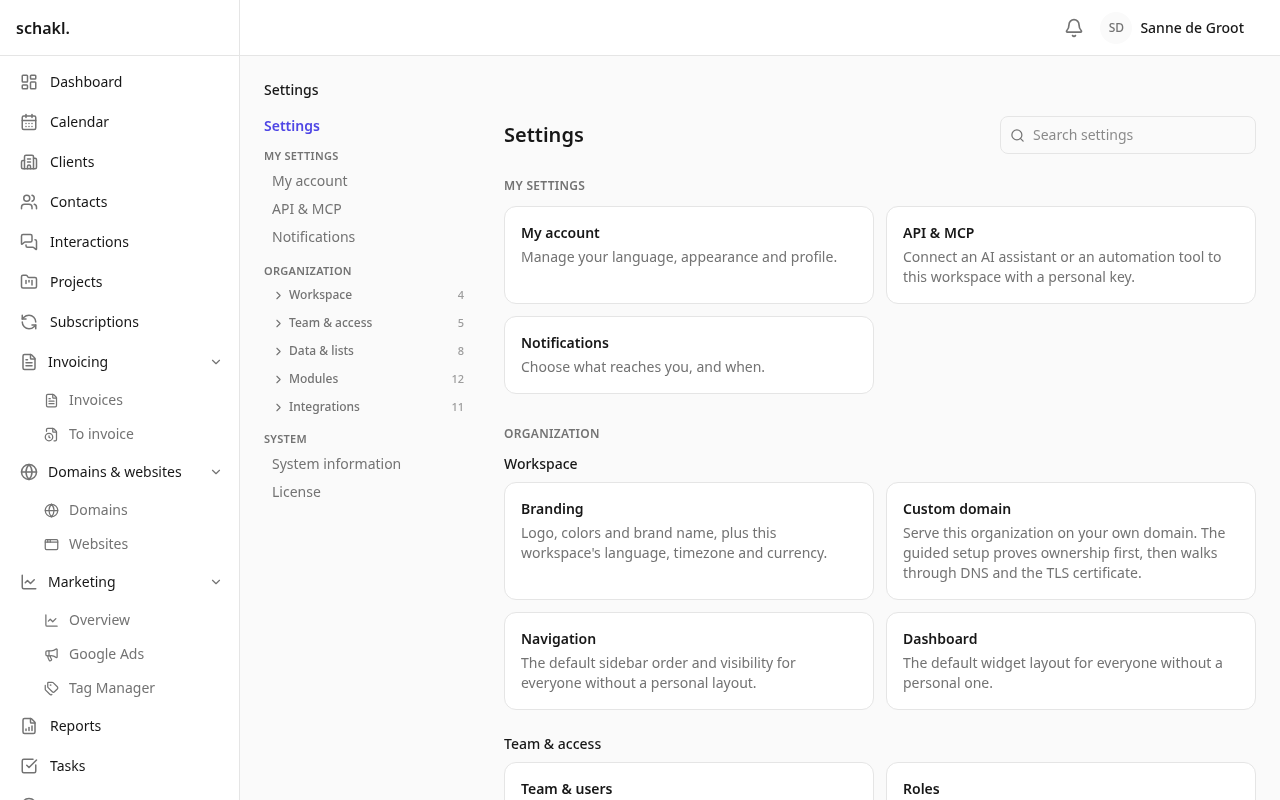
Two screens, and the difference between them
Section titled “Two screens, and the difference between them”- Instellingen → Modules (
/settings/modules) — what schakl. itself does for this workspace: clients, tasks, projects, hours, invoicing, domains, reporting. Worth having with every third-party account in the world cancelled. - Instellingen → Integraties (
/settings/integrations) — which outside services schakl. talks to: Google, Cloudflare, OXXA, Mollie, SnelStart, WordPress, Uptime Kuma, Tag Manager, Google Ads. Each holds a credential of yours, and what it stores is a mirror of state that lives over there.
The test is one sentence: if the vendor went out of business tomorrow, is the thing gone, or is it merely poorer? Gone means integration. Poorer means module. Each screen sits first in the group of settings it governs, so a heading and the screen under it cannot disagree.
Both are there for anyone holding the “Huisstijl en modules wijzigen” (Change branding and enabled modules) permission; by default that is the owner and the administrator.
Missing a module you expected? Then it is not part of this installation. Instellingen → Systeeminformatie (Settings → System information) lists what the installation itself carries under Ingeschakelde modules (Enabled modules).
What the screen shows
Section titled “What the screen shows”Three kinds of row:
- Klanten (Clients) carries the label Altijd aan (Always on) and cannot be unticked. Almost everything in schakl. hangs off a client, so that module is the hub and stays.
- A licensed module with no valid key installed carries the label Licentie vereist (License required) and cannot be ticked. The note beside it reads: “Deze module vereist een licentiesleutel. Installeer er een onder Instellingen → Licentie en schakel de module daarna hier in.” (This module requires a license key. Install one under Settings → License, then enable it here.)
- Every other module is a plain tick box.
Saving applies to the whole list at once: what is ticked goes on, what is not ticked goes off.
What switching a module off actually does
Section titled “What switching a module off actually does”The screen says it itself: a disabled module disappears from view everywhere but keeps its data, and switching it back on restores everything. Concretely:
- its item disappears from the sidebar;
- its panel disappears from the client record;
- its settings screen disappears from Instellingen;
- its dashboard tiles can no longer be chosen under Instellingen → Dashboard;
- its e-mail templates are no longer listed under Instellingen → E-mail;
- a report section it contributes no longer appears in new reports. Reports already generated keep their own snapshot and do not change.
Nothing is deleted. Switch the module back on later and everything is there exactly as you left it.
What needs what, and who works it out
Section titled “What needs what, and who works it out”An integration that has nowhere to put its data without a module says so, and the screen acts on it rather than refusing you afterwards.
| Integration | Cannot work without |
|---|---|
| Cloudflare, OXXA | Domeinen (Domains) |
| WordPress | Websites |
| Mollie, SnelStart | Facturatie (Invoicing) |
| Google Ads, Google Tag Manager | Google Workspace |
Ticking one of those pulls in what it needs. Unticking a module leaves the integrations that depended on it ticked-but-not-saved with an amber line naming what is missing, so you find out before you save rather than through a refusal.
Because the two screens edit one list, each names its casualties on the other screen, by name: switching Domeinen off under Modules tells you Cloudflare and OXXA go with it, before you save, on a screen that does not even list them.
Licensing and modules
Section titled “Licensing and modules”Klanten (Clients), Contactpersonen (Contacts), Taken (Tasks) and Meldingen (Notifications) are part of the freely usable core. Every other module and every integration is licensed. What a key covers and how you install one is on Licenses.
Two things meet on this screen:
- Enabling a licensed module for the first time only works while a valid key or the trial period covers it. Otherwise the checkbox is already blocked, and saving reports “This module requires a license.”
- A module that is already on stays on when its license expires. It becomes read-only: reading, searching and exporting keep working, changing does not. The checkbox stays usable on purpose, so you can still switch the module off if you have stopped using it.
Elsewhere in the app the same thing shows up as a locked button. Clicking it opens the “Unlock …” dialog. If you are the instance owner it offers Naar licentie-instellingen (Go to license settings); if you are not, it tells you who to ask instead.
During installation
Section titled “During installation”The first-run wizard (Installatie instellen, Set up this installation) offers the same choice under the heading Modules. What you tick there is only the starting point; you change it afterwards on this screen with no consequences.
Permissions
Section titled “Permissions”| Permission | What it grants | Held by default |
|---|---|---|
settings.branding.write | Change branding and enabled modules | Owner, Administrator |
It is one permission for both screens: whoever may switch modules on may also change the branding. Installing a license key is not part of it — only the instance owner can do that.
Good to know
Section titled “Good to know”- Switching a module off leaves your roles untouched. The permissions stay as they were and apply again the moment the module comes back on.
- A module that arrives with an update shows up in this list by itself and stays off until somebody ticks it here. Upgrading alone therefore never changes your workspace.
- If you want a module but not in the sidebar, or under a different name, Instellingen → Navigatie (Settings → Navigation) is the right place. Switching it off is a heavier instrument than you need.