

Tasks
Tasks are the work itself: what has to happen, for which client, by whom and when. The board groups on the statuses your agency configures, not on a list we decided for you.
Where to find it
Section titled “Where to find it”Taken (Tasks) in the main menu. Every client record also carries a Taken panel, and every project page a to-do list. The settings screens are:
- Instellingen → Taakstatussen (Settings → Task statuses): the columns of your board
- Instellingen → Taaklabels (Settings → Task labels): coloured labels
- Taken → Sjablonen (Tasks → Templates): task templates and checklist templates on one screen
Tasks is part of schakl.’s open core, so it needs no licence key.
The board
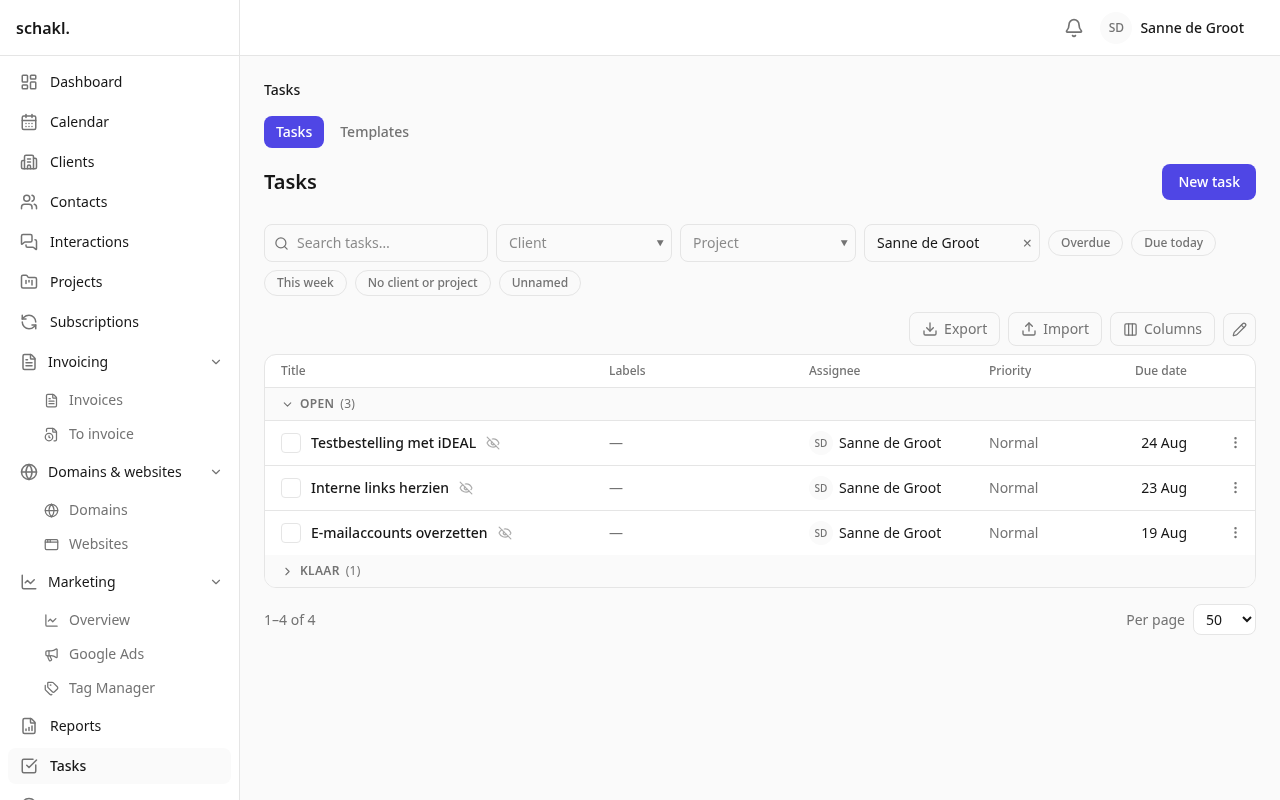
Section titled “The board”Opening Taken shows your tasks first, not everyone’s. To see the rest, pick another assignee or Geen (None) in the person picker.
You can filter on client, project, assignee, label and deadline (Over tijd overdue, Vandaag today, Deze week this week), plus free text. Rows are grouped per status; finished statuses start folded away. You choose your own columns and that choice is remembered; sorting orders rows inside each group.
The ✎ switches the checkboxes on and lets you change a whole selection at once: status, assignee, priority, project, client and deadline. Rows that are refused (a task whose deadline needs a reason, say) are reported per row; the rest still go through. Nieuwe taak (New task) creates the task straight away and drops you on its page in edit mode; there is no separate creation form.
Setting up statuses
Section titled “Setting up statuses”Under Instellingen → Taakstatussen you rename, recolour and reorder the columns of your board, or add your own. Each status carries three flags:
- Afgerond (finished): an end state. It decides when a task counts as done, folds away on the board, and triggers a recurrence set to “after completion”.
- Standaard (default): where new tasks start.
- Contactmoment vereist: this status is only reachable through a logged contact moment.
A task
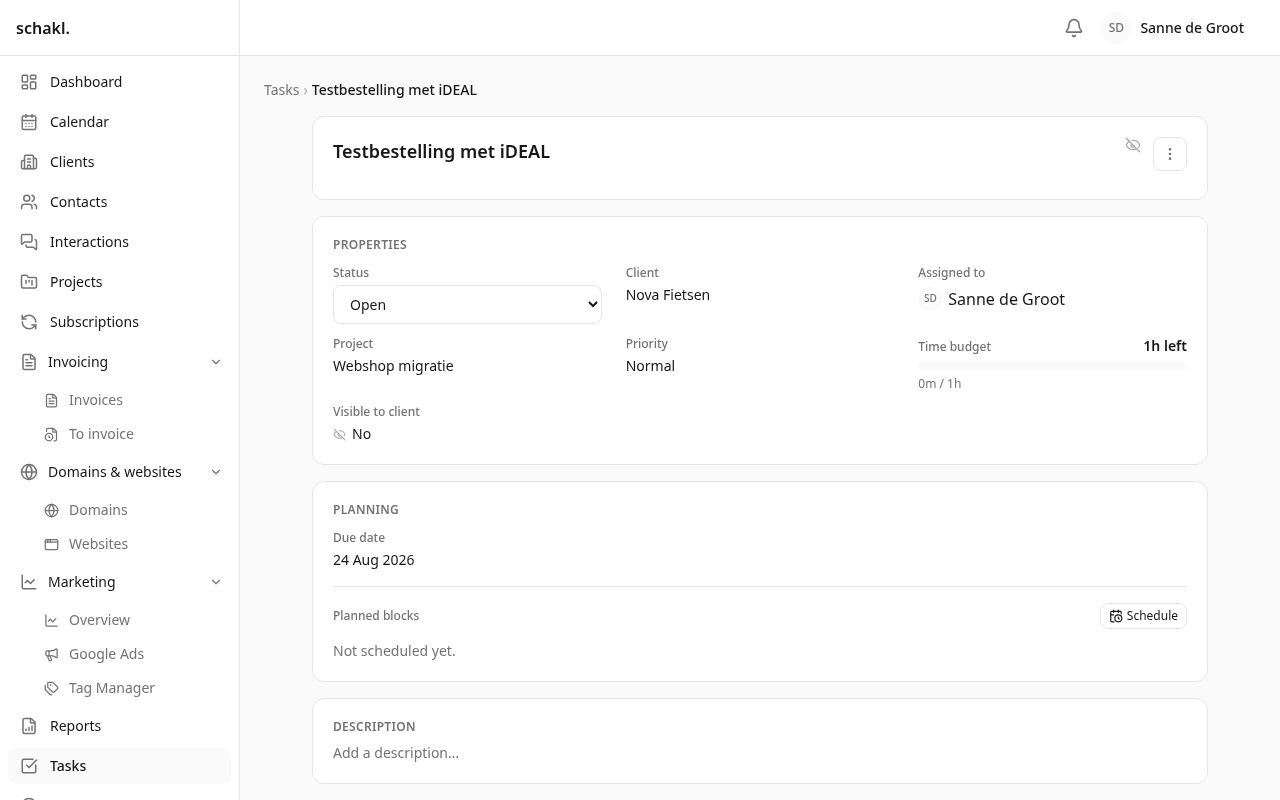
Section titled “A task”On the task page, Bewerken (Edit) opens the definition: Status, Prioriteit (Laag/Normaal/Hoog), Toegewezen aan (assignee), Project, Klant, Vervaldatum (due date) and Tijdbudget (time budget) in minutes. The time budget is shown against the hours logged on the task, as “x left” or “x over budget”.
- Labels: coloured, org-wide, and creatable from inside a task.
- Checklists: several per task, each with a markdown description, and items that may carry their own description. Uit sjabloon (From template) pulls in an existing checklist; Opslaan als sjabloon (Save as template) puts this one in the shared library.
- Links & bijlagen: URLs plus real file uploads.
- Reacties (comments): with @mentions of colleagues and contacts and
#references to other tasks. Editing and deleting are allowed; an edited comment is marked “bewerkt”. - Activiteit: everything that happened to the task, from creation to an extended deadline and its reason. The name of whoever did it is snapshotted, so it stays readable after the account is gone.
Tick the last open item and schakl. offers to move the task to its finished status.
Two switches that reach beyond the task
Section titled “Two switches that reach beyond the task”- Alleen afsluiten met een contactmoment (close only with a contact moment): this one task may only reach a finished status through a contact moment designated as its closer. Independent of the status flag, so a single task can demand it without the whole status doing so.
- Zichtbaar voor klant (visible to client): off by default. When on, a portal contact of that client can see the task and comment on it.
A task can also be assigned to a contact of its own client instead of to an employee: “waiting on the client”. Never to both at once.
Planning it on the calendar
Section titled “Planning it on the calendar”A deadline is not the same thing as the moment you work on it. Under Agenda → Nieuw → Inplannen (Calendar → New → Schedule), and from the Planning panel on the task itself, you plan blocks:
- Pick the task; its time budget and deadline are shown beside it.
- Choose Voor wie (for whom). Yourself always; a colleague only with the matching permission.
- Fill in Datum, Starttijd, Duur (minuten) and optionally a Notitie.
- The block appears on the Agenda and can be dragged to another day.
- Once the block has passed it offers Uren registreren (log time). That creates the real time entry and marks the block as logged, so you never write it twice.
One task may carry several blocks; with the Google integration connected they also appear in Google Calendar.
Recurrence
Section titled “Recurrence”A task can repeat Dagelijks, Wekelijks, Maandelijks, Per kwartaal or Jaarlijks, in one of two modes:
- Na afronden (after completion): the next task appears the moment you finish this one.
- Op schema (on schedule): it is created automatically on the interval, even if this one is still open.
Labels and checklists carry over to the next occurrence.
Templates
Section titled “Templates”Taken → Sjablonen holds two libraries. A takensjabloon (task template) is a named set of tasks, each with a priority, Deadline na so many days, a time budget, an assignee or Verantwoordelijke van de klant (the client’s responsible person, resolved at apply time), and a checklist. Apply it Handmatig (manually) from a client record with Sjabloon toepassen, or automatically Bij klantstatus (on client status): the tasks appear as soon as a client reaches that status. A subscription type can roll its templates out the first time an agreement becomes active. Checklistsjablonen (checklist templates) are reusable checklists anyone can attach to a task.
Reminders
Section titled “Reminders”A daily job announces what is overdue and what falls inside your own threshold; you set that per person under Instellingen → Meldingen (Settings → Notifications), field Bijna verlopen (dagen) (due soon, in days). A task announces itself once per deadline, and again as soon as someone moves it.
Permissions
Section titled “Permissions”| Permission | Held by default |
|---|---|
tasks.task.read | Administrator, Member, Client |
tasks.task.create | Administrator, Member |
tasks.task.write | Administrator (any), Member (own) |
tasks.task.delete | Administrator |
tasks.comment.write | Administrator (any), Member and Client (own) |
tasks.schedule.read / tasks.schedule.write | Administrator (anyone’s), Member (their own) |
tasks.label.write · tasks.status.write | Administrator |
tasks.template.write · tasks.template.apply · tasks.checklist_template.write | Administrator |
For a task, “own” means the task is assigned to you. A member therefore edits their own tasks and not somebody else’s. All of it is adjustable per role under Instellingen → Rollen (Settings → Roles).
Good to know
Section titled “Good to know”- Deleting a task takes its comments, checklists, links and planned blocks with it. Hours already logged survive; they simply lose their task link.
- Import always creates new tasks. Task titles legitimately repeat, so there is no honest
key to update on. The
assigneecolumn matches on the employee’s e-mail address, andstatusis checked against your own status list. Exporting works normally; see Import & export. - The Sjablonen tab only appears for people allowed to manage templates; a portal client never reaches it.
- The Dashboard carries the widgets Mijn openstaande taken (my open tasks) and Openstaande taken per project / klant, and the Agenda the feeds Ingeplande taken (scheduled tasks) and Taakdeadlines (red once something is overdue).
Read next
Section titled “Read next”- Projects — where tasks get their budget and to-do list
- Clients — the record with the tasks panel
- Import & export