

Subscriptions
A subscription is a recurring agreement with a client: hosting, maintenance, an SEO retainer. It records what it costs, how often it invoices and how many hours it includes, and it answers the question of what is running every month.
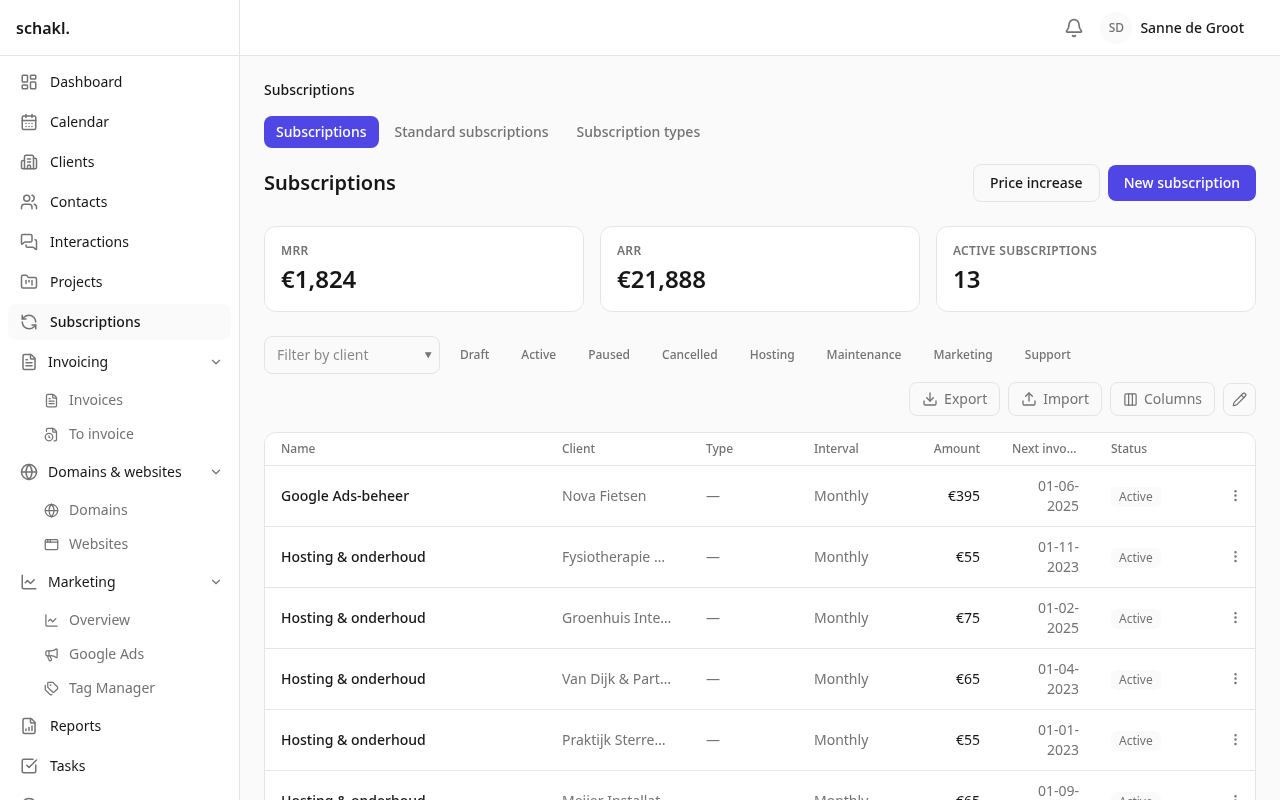
Where to find it
Section titled “Where to find it”Abonnementen (Subscriptions) in the main menu. Tabs above the section lead to the list itself, to Standaardabonnementen (Standard subscriptions) and to Abonnementstypes (Subscription types). You only see those two with the matching manage permissions; Instellingen → Abonnementen (Settings → Subscriptions) leads to the same screen. The client page and the project page each carry an Abonnementen panel.
At the top of the list sit Maandelijks terugkerende inkomsten (MRR), Jaarlijks terugkerende inkomsten (ARR) and the number of Actieve abonnementen. Below them you filter by client, by status and by your own types.
Creating a subscription
Section titled “Creating a subscription”- Click Nieuw abonnement (New subscription), optionally after choosing a Vanuit standaardabonnement (From standard subscription), which prefills the form.
- Fill in Naam (Name), Klant (Client) and Type.
- Set Status (Concept / Actief / Gepauzeerd / Opgezegd, i.e. draft / active / paused / cancelled), Interval (Maandelijks, Per kwartaal or Jaarlijks), Bedrag (Amount), Inbegrepen uren (Included hours) and the Startdatum (Start date).
- Under Automatisch factureren (Automatic invoicing), choose how far invoicing goes on its own, or leave it on Instelling van de organisatie volgen (follow the organisation setting).
- Under Gekoppelde projecten (Linked projects), link the projects whose hours draw on the bundle.
A new subscription defaults to Actief. Its Volgende factuur (Next invoice) is then derived for you, one period after the start date, and only becomes visible and editable in the edit form. A subscription that arrives through an import deliberately lands as Concept, so a bulk import never quietly starts billing.
The price has a history
Section titled “The price has a history”Bedrag is not a field you overwrite: every price change adds a row with an effective date. That is what keeps last year’s invoice from being repriced after the fact, and what makes the billing cycle charge the price that applied on the invoice date.
For a round of increases, use Prijsverhoging (Price increase) above the list, or Prijs verhogen in a row’s ⋯ menu. You choose the Aanpassing (add a percentage, add a fixed amount, or set a new amount), an Ingangsdatum (effective date) and the Bereik (scope): all subscriptions, one type, one subscription, or one standard subscription. Optionally the standard subscriptions’ own prices are updated too. You get a Voorbeeld (Preview) first, listing the current and the new amount per subscription; nothing is written until Doorvoeren (Apply). Cancelled subscriptions are skipped, including when you target one directly.
Included hours and projects
Section titled “Included hours and projects”Under Gekoppelde projecten you link the projects the work for this agreement is logged against. That has two consequences:
- The project takes its hours budget from the agreement instead of from its own field. The budget field on the project is then locked and reads “Uren komen van abonnement” (hours come from a subscription). Where several agreements cover the same project, they add up.
- Work on such a project defaults to Niet facturabel (non-billable), because the retainer already pays for it.
A non-monthly agreement is converted to a month: 30 included hours per quarter give the project 10 hours per month, and the budget period becomes monthly. Only active subscriptions with included hours count. On the project page the Abonnementen panel shows how much of the bundle has been used this period and whether you are over it.
The billing cycle
Section titled “The billing cycle”Once a day schakl. checks which active subscriptions have reached their Volgende factuur date. For each one the period is offered up at the price that applied on that date, and the next invoice date moves on by one period. What happens next depends on Automatisch factureren:
| Level | What happens |
|---|---|
| Uit (Off) | Nothing is created; the period stays outstanding and you add it yourself in the invoice editor. |
| Concept klaarzetten (Prepare a draft) | A draft invoice appears; you check it and send it. |
| Klaarzetten en definitief maken (Prepare and issue) | The invoice also gets its number and due date, but is not e-mailed. |
| Klaarzetten, definitief maken en mailen (Prepare, issue and send) | The invoice goes to the client with its PDF, unreviewed. |
The cycle always advances, including on Uit: a period nobody invoiced stays outstanding and is offered in the invoice editor, so it is never lost. Draft, paused and cancelled agreements do not bill.
Standard subscriptions and types
Section titled “Standard subscriptions and types”A standaardabonnement (standard subscription) is a preset that prefills the create form, such as “Hosting Basis, € 25 per month, 1 hour included”. You make them on the Standaardabonnementen tab, or you save an existing agreement as one with Opslaan als standaardabonnement in the row’s ⋯ menu. They also record the Opzegtermijn (dagen) (notice period in days). Rename a standard subscription and the subscriptions still carrying that name are renamed with it, and the screen tells you how many; give a subscription its own name and it stops following. Changing a standard subscription’s price never changes the price of an existing subscription.
Abonnementstypes are your own categories (hosting, maintenance, SEO), with a label per language, a position and an active/inactive switch. More importantly, a type carries taaksjablonen bij activatie (task templates on activation). The first time a subscription of that type becomes active, those tasks are created on the client. That happens exactly once per agreement, so pausing and resuming never spawns a second onboarding.
Notes with variables
Section titled “Notes with variables”The Notities (Notes) field understands variables that are stored as tokens and filled in only
when the note is displayed: {{company_name}}, {{subscription_name}}, {{type}}, {{amount}},
{{interval}}, {{included_hours}}, {{start_date}} and {{brand_name}}. While you edit, a
Voorbeeld (Preview) sits under the field. They work in a standard subscription too, where they
are resolved on every subscription that uses it.
Permissions
Section titled “Permissions”Set per role under Instellingen → Rollen (Settings → Roles).
| Permission | What it grants | Held by default |
|---|---|---|
subscriptions.subscription.read | View subscriptions | Administrator |
subscriptions.subscription.write | Manage subscriptions | Administrator |
subscriptions.subscription.delete | Delete subscriptions | Administrator |
subscriptions.type.manage | Manage subscription types | Administrator |
subscriptions.template.manage | Manage standard subscriptions | Administrator |
Reading is deliberately not a Member default: what a client pays is commercially sensitive. You can widen it per role. The Owner role holds everything.
Good to know
Section titled “Good to know”- Deleting a subscription takes its price history and invoice lines with it. If you only want the billing to stop, set the status to Gepauzeerd or Opgezegd; the agreement and its history stay.
- On the client page the Abonnementen panel stays empty for someone without read permission, rather than showing an error.
- Import and export cover three lists: subscriptions (upserted on name), subscription types (on key) and standard subscriptions (on name). Invoice lines and project or task links are deliberately not included. See Import & export.
- Subscriptions is a licensed module: when the licence lapses everything stays readable and exportable, but writing stops.