

Dashboard
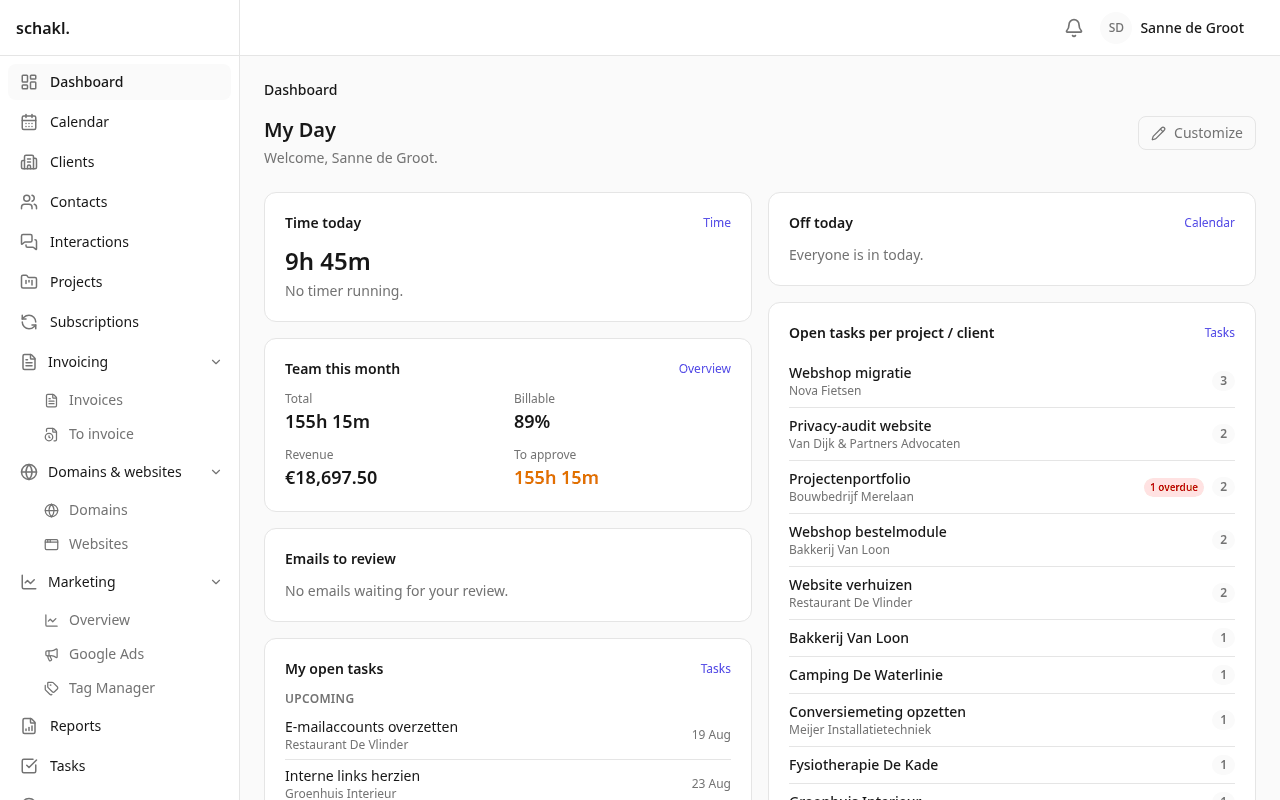
The first screen after signing in answers one question: what am I doing today? It is a board of tiles, each contributed by a module you have switched on, each showing only what the person looking at it is allowed to see.
Where to find it
Section titled “Where to find it”Dashboard in the main menu, and the page you land on after logging in. Your own layout is edited in place with Aanpassen (Customise); the layout everyone starts from is set under Instellingen → Dashboard (Settings → Dashboard).
What is on it
Section titled “What is on it”Every tile comes from a module. Switch a module off and its tiles disappear from the gallery along with it; hold no permission for what a tile reads, and it is never offered to you in the first place — a dashboard does not draw a card that would refuse.
| Tile | What it answers |
|---|---|
| Uren vandaag | What you have logged today, and whether a timer is running |
| Team deze maand | Total, billable share, revenue, and what still needs approving |
| Mijn openstaande taken | Yours, soonest first |
| Openstaande taken per project / klant | Where the open work sits, with overdue counts |
| Verlof | Your own balance, in hours and in days |
| Vandaag afwezig | Who is away, today |
| Openstaande facturen | What is outstanding, and how much of it is overdue |
| Openstaande offertes | Quotes still waiting for an answer |
| Terugkerende omzet | The retainer book, per year, and what renews next |
| Nog te factureren | Work that is finished and not yet on an invoice |
| E-mails te beoordelen | Mail waiting for you to accept or reject it onto a client |
| Marketing | The client figures, in summary |
| Rapportages | The latest reports, and their state |
Making it yours
Section titled “Making it yours”- Press Aanpassen (Customise). The board switches to edit mode.
- Drag tiles into the order you want. Some are half-width and some full-width; the grid keeps its own shape.
- Add one from the gallery, or take one off the board. Removing a tile never removes anything but the tile.
- Leave edit mode. Your layout is saved against your account, not against the browser, so it follows you to another device.
An administrator sets the house layout under Instellingen → Dashboard. That is what everybody who has not arranged their own board sees — including everybody on their first day. Once somebody has customised their own, the house layout stops applying to them; there is deliberately no button that overwrites a colleague’s arrangement.
The client’s dashboard is a different board
Section titled “The client’s dashboard is a different board”A client with a portal login lands on a board of their own. It draws from the same machinery and a different gallery: a tile that links into a screen a client cannot open is never offered there, and the marketing tile a client sees is the curated one rather than the agency’s full set.
Permissions
Section titled “Permissions”The dashboard itself declares none — it is your own view of your own workspace. Each tile carries the permission of the data behind it, so a board is exactly as informative as its viewer is allowed to be. What is gated is arranging a board and, separately, deciding the one everybody starts from:
| Permission | What it opens | Default |
|---|---|---|
dashboard.prefs.read | Read a layout | Everyone |
dashboard.prefs.write | Arrange your own board | Everyone |
settings.dashboard.manage | Set the house layout everyone starts from | Administrator |