

Interactions
Every touchpoint with a client lands on one timeline — the meetings, calls and notes you log yourself, emails you upload, and (with the Google module) the email out of your team’s mailboxes. A colleague picking up an account can read the history instead of asking around for it.
Where to find it
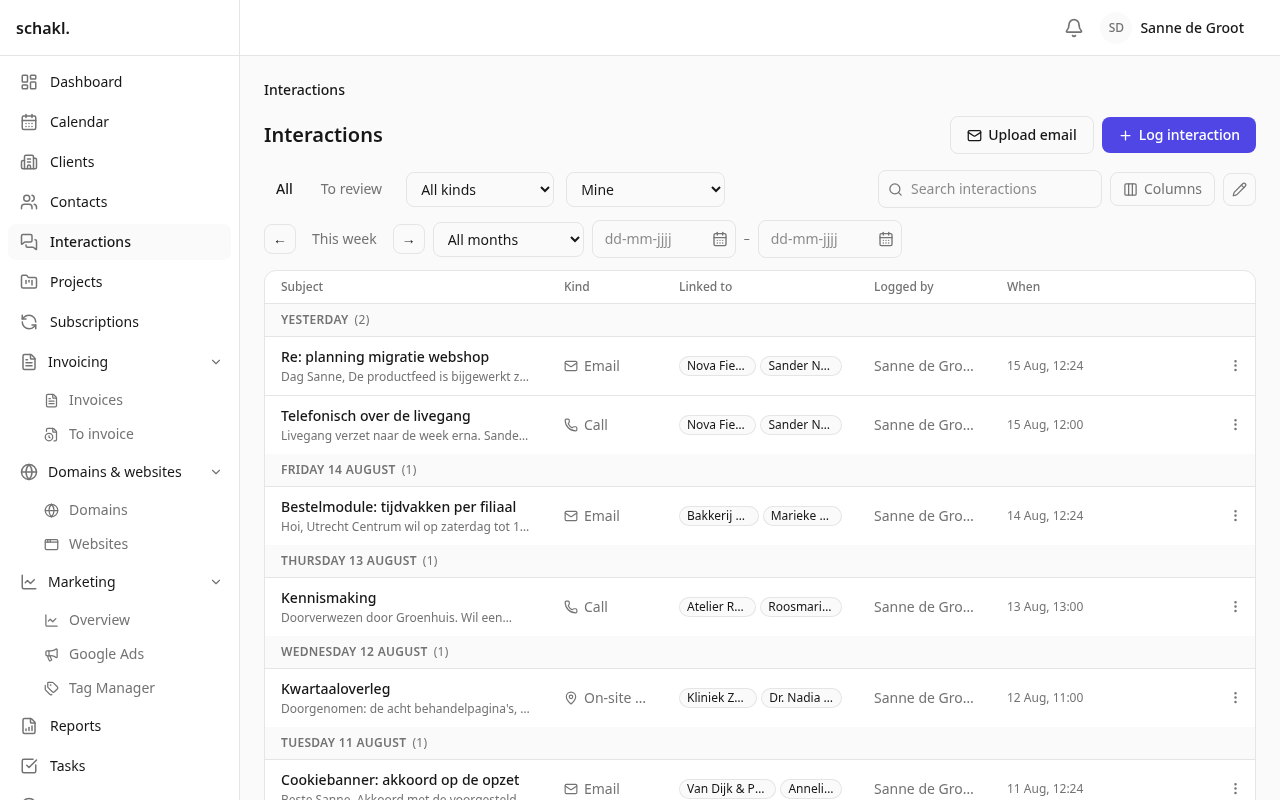
Section titled “Where to find it”- Main menu Interacties (Interactions): every contactmoment, across all clients.
- The Contactmomenten (Interactions) panel on the client, project, task and contact pages.
- The E-mails te beoordelen (Emails to review) widget on your dashboard, with its Beoordeel alle … (Review all …) link.
- Instellingen → Contactmoment-typen (Settings → Interaction kinds): the kinds your team can log.
Logging an interaction
Section titled “Logging an interaction”The Contactmoment vastleggen (Log interaction) button sits top right on Interacties, and the same form lives inside every Contactmomenten panel. In order:
- Type: from your own list. Email cannot be chosen here — only a real message may call itself one.
- Datum (Date) and Tijd (Time).
- Voeg aan mijn uren toe (Add to my hours): a checkbox above the subject. Time then becomes Van (From), a Tot (To) appears beside it, and the duration runs along; on save a time entry lands on your own timesheet, linked to this moment and carrying the client, project and subject. New moments only, and never for a note.
- Onderwerp (Subject): optional. Left empty, the row is titled by its kind (“Telefoongesprek”).
- Contactpersonen (Contact persons): everyone who was in it, not one person. Typing searches, an unknown name is created on the spot, and the first in the row is the lead. Filtering on someone finds the moments they were in, not only the ones they led.
- Gekoppeld aan (Linked to): Klant (Client), Project and Taak (Task). Pick a project or a task and the client is taken from it, which the field says out loud.
- Taak hiermee afronden (Close task with this): available on a linked task, with a choice of your completed statuses.
- Richting (Direction — Incoming, Outgoing or Not applicable) and Notities (Notes), rich
text with
@mentions of colleagues and contacts.
The list
Section titled “The list”At the top sit the tabs Alle (All) and Te beoordelen (To review), a kind filter and the Vastgelegd door (Logged by) filter. That last one starts on Mijn contactmomenten (Mine) and Iedereen (Everyone) is one click away, but naming a specific colleague needs the View everyone’s interactions permission. For dates there is a week stepper (Vorige week, Deze week, Volgende week), a month picker and an explicit Van – Tot en met range with Datums wissen (Clear dates) beside it. Search covers subject, snippet and body. The columns are Onderwerp, Type, Gekoppeld aan, Vastgelegd door and Wanneer (Subject, Type, Linked to, Logged by, When).
Per row, ⋯ offers Bewerken (Edit), Verplaatsen / koppelen (Move / link, onto a different client, project or task, with inline create) and Verwijderen (Delete). On an email, Goedkeuren (Approve), Toewijzen… (Assign…), Afwijzen (Reject) and Aan gesprek toevoegen (Add to conversation) join them.
Email from Gmail
Section titled “Email from Gmail”With the Google module connected, schakl. polls the enrolled mailboxes every five minutes. Messages where a participant is a known contact land as Te beoordelen. The team then sees only the metadata: participants, subject and a snippet. Only once the mailbox owner approves is the body fetched and shared.
- Open Interacties and click the Te beoordelen tab (or use the dashboard widget).
- Click a row to read the message.
- Goedkeuren shares the content, Toewijzen… first files it onto the right client or project, Afwijzen removes it.
- Several at once: switch the checkboxes on with the ✎, tick rows (shift-click selects a run) and choose Approve, Assign or Reject. You get a per-row outcome rather than all-or-nothing.
The policy lives under Instellingen → Google Workspace → Gmail-beleid (Gmail policy). Under Nieuwe gekoppelde e-mails (New matched emails) you choose between “Eigenaar keurt goed voordat de inhoud wordt vastgelegd” (the default) and “Direct vastleggen, inclusief inhoud”; Ook e-mail tussen collega’s oppikken is off by default, and internal email always waits for review.
The first poll of a newly connected mailbox imports nothing — it only records the starting point. Existing mail is not pulled in retroactively.
Uploading an email
Section titled “Uploading an email”Without a Gmail connection (or for a message from another mailbox) there is E-mail uploaden
(Upload email). Export the message from your mail program as .eml; subject, participants, date,
body and attachments are read out of the file and the formatting is kept. If the message is
already on the timeline, schakl. says so and offers Toch vastleggen (Log anyway). Attachments
that are too large or of a disallowed type are skipped, with a message telling you how many.
Conversations
Section titled “Conversations”Emails from one conversation fold into a single row on the list, with a message count. The detail window expands the whole conversation, and Toon eerdere berichten (Show earlier messages) reveals the quoted history. If a stray message belongs to it after all, Aan gesprek toevoegen glues it on by hand. A signature image belongs to the body rather than to the attachments; images loaded from an external server are dropped, because a tracking pixel is an image too.
Interaction kinds
Section titled “Interaction kinds”Instellingen → Contactmoment-typen holds the vocabulary. It ships with E-mail, Online afspraak, Afspraak op locatie, Telefoongesprek and Notitie (Email, Online meeting, On-site meeting, Call, Note). You add your own with a Dutch and an English label and an ordering.
E-mail is a system kind: it can be relabelled but never deleted or deactivated. A kind already in use cannot be deleted either; deactivate it instead, so it disappears from the pickers while the history stays correct.
Permissions
Section titled “Permissions”Set per role under Instellingen → Rollen (Settings → Roles). By default:
| Permission | What it does | Held by default |
|---|---|---|
interactions.interaction.read | View interactions | Administrator, Member |
interactions.interaction.read_all | View everyone’s interactions | Administrator |
interactions.interaction.write | Log and edit | Administrator (any), Member (own) |
interactions.interaction.delete | Delete | Administrator (any), Member (own) |
interactions.interaction.review | Review logged emails (own mailbox) | Administrator, Member |
interactions.kind.read | View interaction kinds | Administrator, Member |
interactions.kind.manage | Manage interaction kinds | Administrator |
The Client role holds none of these, so a client-portal login never sees the timeline. And
review has no “anyone’s” variant: even with it, you only ever decide about your own mailbox.
Good to know
Section titled “Good to know”- Interactions cannot be imported or exported; this list carries no Export and Import buttons. Its selection mode offers reviewing only.
- A task can carry the requirement that it may only be closed with an interaction (“Contactmoment vereist”). Log the moment and tick Taak hiermee afronden.
- Deleting a project or a task leaves the interaction standing; only the link goes. So does the name of whoever logged it, even after that colleague leaves.
- Notifications: you can be alerted on An email is waiting for my review and I am mentioned in an interaction.