

Invoicing
Invoicing writes your invoices and quotes inside schakl., out of the work that is already recorded: approved hours, subscription periods and domain renewals. You never retype your month into a separate billing package, and what has been billed once cannot land on a second invoice.
Where to find it
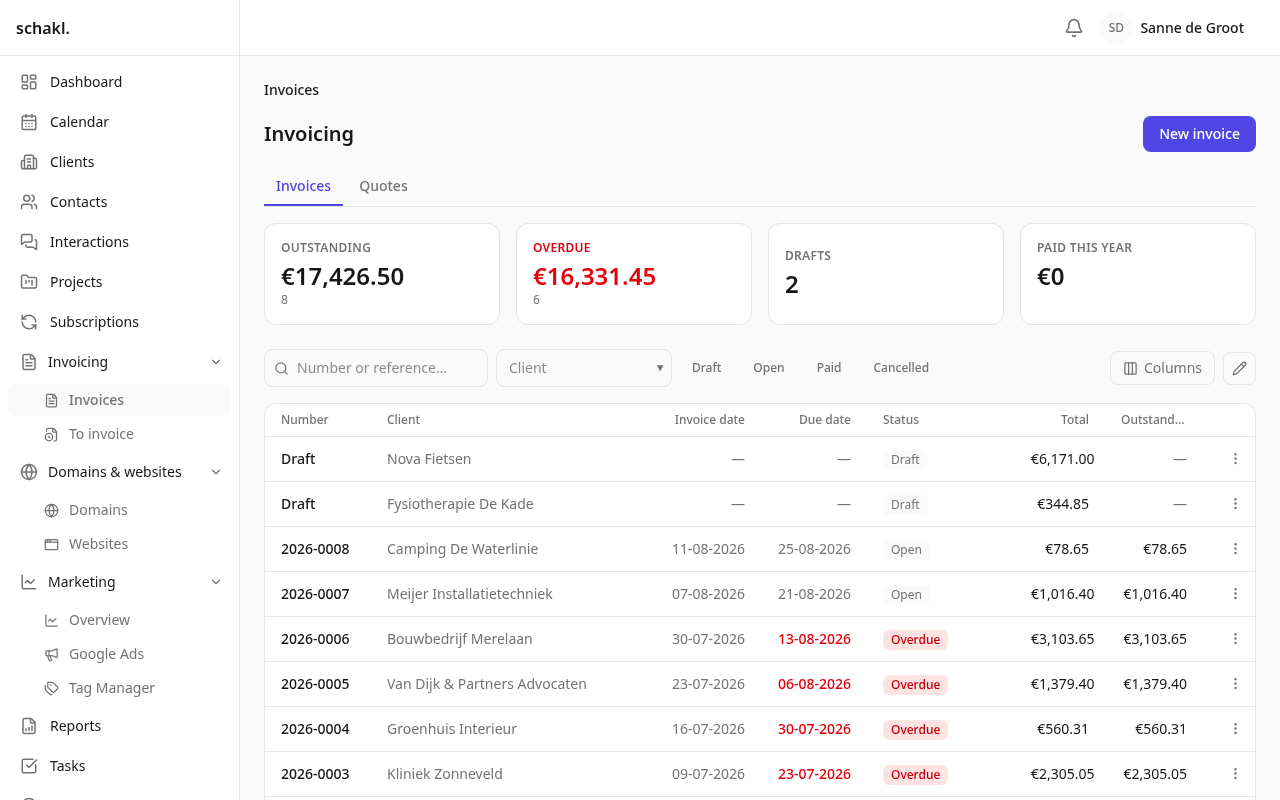
Section titled “Where to find it”The main menu carries Facturatie (Invoicing) with Facturen (Invoices, which has tabs for Facturen and Offertes / Quotes) and Nog te factureren (To invoice). What you configure once lives at Instellingen → Facturatie (Settings → Invoicing), in the sections Bedrijfsgegevens (company details), Btw-tarieven (VAT rates), Producten en diensten, Sjablonen (templates), Nummering, Standaardwaarden (defaults), Automatisch factureren, Betalingsherinneringen (payment reminders) and Boekhouding (accounting). Every client page also carries a Facturatie panel with that client’s most recent invoices and quotes.
Invoicing is a licensed module. Once a licence expires it goes read-only: viewing, printing and exporting keep working, creating and editing do not.
Set it up once
Section titled “Set it up once”-
Bedrijfsgegevens: name, address, VAT number, chamber-of-commerce number, IBAN and the rest. This prints on every document and feeds the UBL export. While Naam (name) is empty, schakl refuses to issue an invoice at all.
-
Btw-tarieven: set your Belastingland (tax country); while the list is empty schakl seeds suggestions from it (for NL 21%, 9%, 0%, exempt and reverse charge). Per rate you set the percentage, the category, a label per language, an optional ledger code and whether it is the default. Vrijgesteld (exempt) and Verlegd (reverse charge) charge nothing whatever percentage is entered.
-
Nummering: Factuurnummerformaat (default
{year}-{seq:4}) and Offertenummerformaat (defaultQ{year}-{seq:4}), using the tokens{year},{yy},{seq}and{seq:N}for zero-padding. The next number and “Nummering elk jaar opnieuw beginnen” (restart numbering yearly) live here too. -
Standaardwaarden: payment term (14 days), quote validity (30 days), a default VAT rate, a default template, a default hourly rate and “Prijzen inclusief btw” (tax-inclusive prices, off). Optionally fill Producten en diensten with standing lines you drop onto a document in one click.
Building an invoice
Section titled “Building an invoice”Nieuwe factuur (New invoice) asks for the client, contact, invoice date, due date, reference, currency, document language and template. Below that sits the line editor, in four sections that mirror the bands the printed document uses: Uren (hours), Abonnementen (subscriptions), Domeinen (domains) and Diensten en producten (services & products).
The first three are picked, not typed: each has a button with a count beside it (“Uren kiezen”, “Periodes kiezen”, “Verlengingen kiezen”). The picker shows what this client still has outstanding, and the line arrives priced and dated and remembers what it bills. Periods already on another document are still listed, labelled al gefactureerd (already invoiced): answering by omission is exactly how a duplicate happens. Only Diensten en producten has a free unit field. VAT is calculated and rounded once per rate group across the whole document rather than per line.
From draft to paid
Section titled “From draft to paid”- Definitief maken (Issue) allocates the number, freezes the client’s address block and sets the due date. From here the amounts are fixed.
- Versturen (Send) opens a dialog with Aan (to), Bericht (optional message) and a “Per e-mail versturen” toggle. Untick it and the document is only marked as sent.
- Betaling registreren (Register payment) asks for the payment date, amount, method (bank transfer, cash, card or other) and a note. Partial payments are fine: outstanding is total minus paid minus credited.
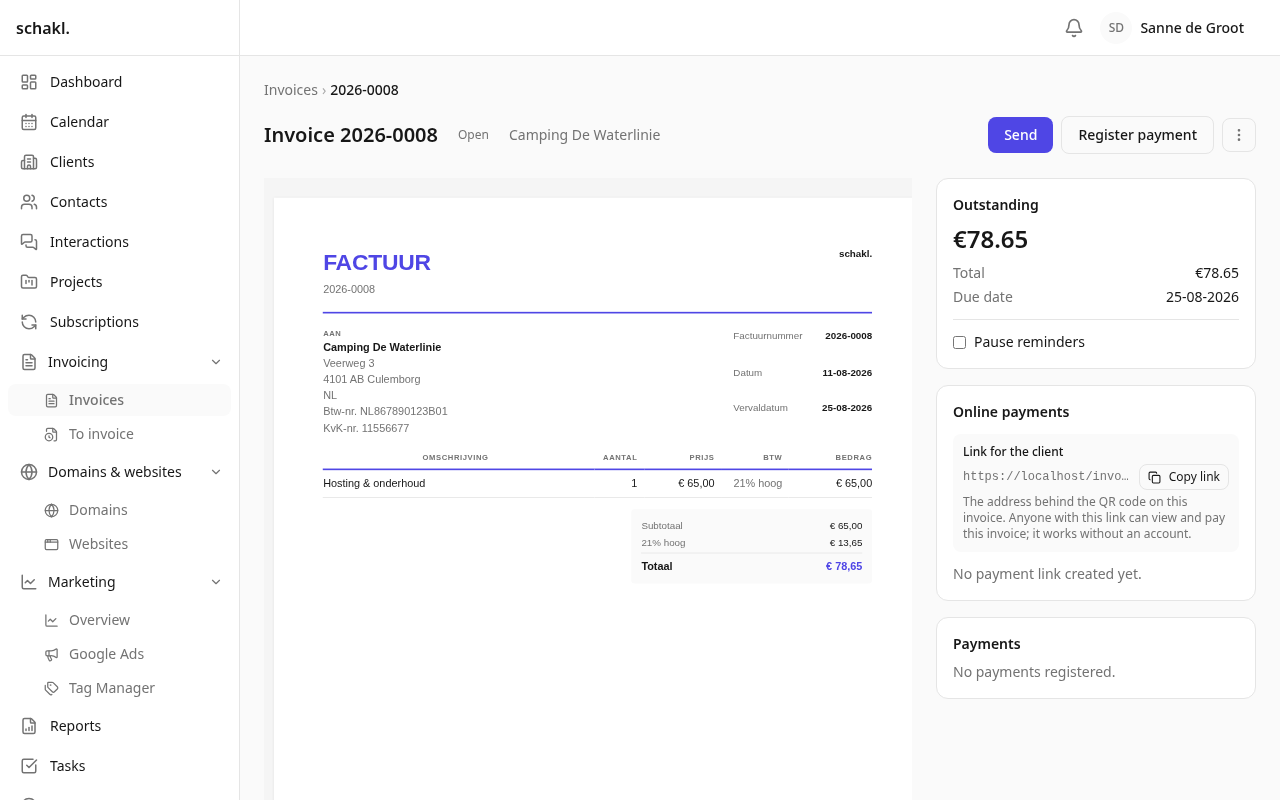
The ⋯ menu also holds Herinnering sturen (send reminder), Crediteren (create credit note), Factuur annuleren (cancel), PDF downloaden, Afdrukken / PDF (print) and UBL downloaden. Vervallen (overdue) is derived rather than set: open, past its due date, and something still outstanding.
Quotes
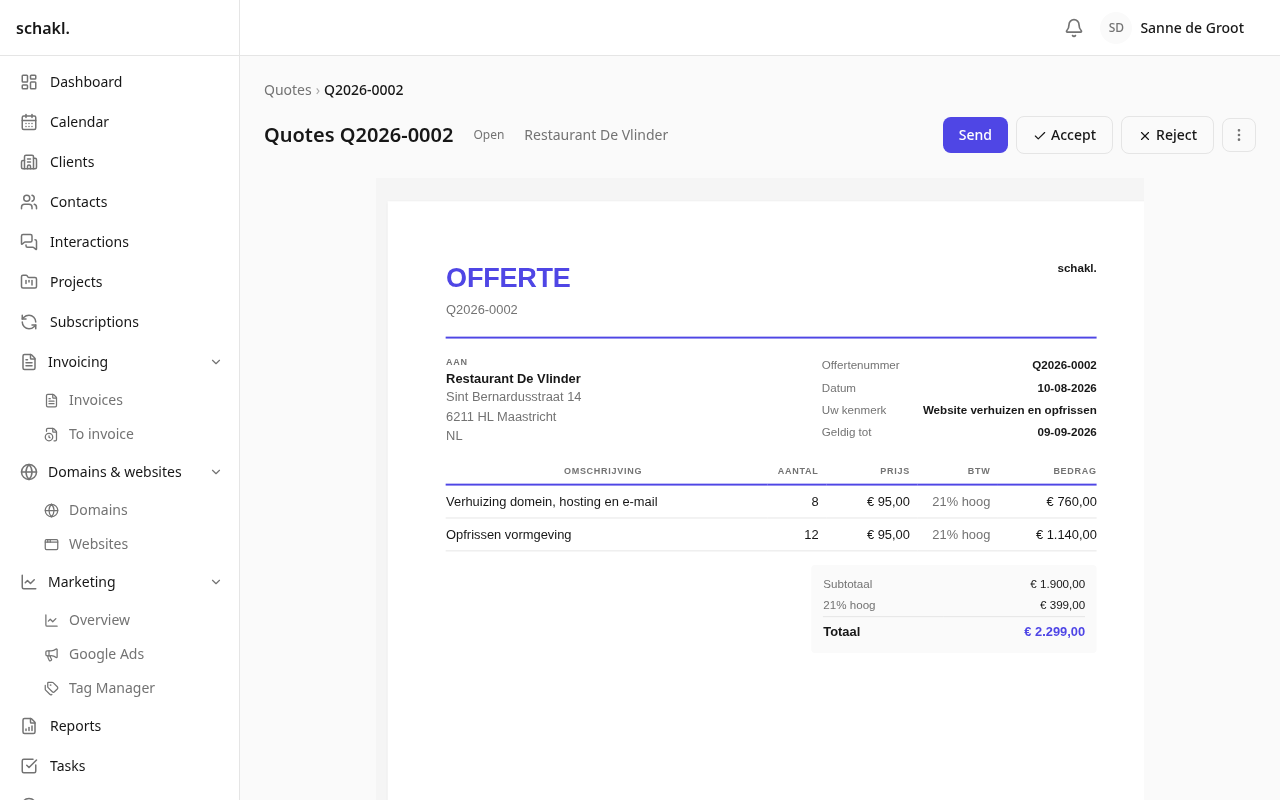
Section titled “Quotes”Quotes use the same editor, VAT and templates, minus the pickers (a quote bills no hours and claims no period yet), on their own route: Definitief maken, Versturen, then Accepteren or Afwijzen, and finally Omzetten naar factuur (convert to invoice), where the lines carry over at the prices and VAT the quote was accepted at. An open quote expires by itself on its “Geldig tot” (valid until) date. Delete the resulting invoice while it is still a draft and the quote returns to accepted.
Correcting with a credit note
Section titled “Correcting with a credit note”You do not edit an issued invoice, you credit it. Crediteren hands you a draft credit note with the same lines at negative amounts; to take back only part of it, edit that draft before issuing. A credit note covering the original in full releases the hours, subscription months and domain years it billed, so you can invoice them again; a partial credit releases nothing, because nothing on the line says which part of the work it concerned. If the invoice was already paid, an amount is left over that goes back to the client, and the button there reads Terugbetaling registreren (register refund).
Paying online
Section titled “Paying online”An open invoice carries an Online betalingen (online payments) card. As staff you press Betaallink to create a payment page for the outstanding amount and pass it on with Betaalpagina openen or Link kopiëren; the client sees Nu betalen (pay now) in the same place. The state follows along (waiting, processing, authorised, paid, failed, expired, cancelled) and as soon as the provider confirms, the payment is booked onto the invoice by itself.
The client can start in four places: the button in the portal, the button in the invoice mail, the one in the reminder, and the QR code with its pay-online line on the document itself. All four land in the same place — the invoice’s own page in the client portal — and never on the provider’s checkout: such an address is a bearer credential on paper, it expires within a quarter of an hour while the invoice does not, and two valid ways into one debt produce double payments. The button in the mail is stricter than the link on the document: it appears only when a provider is connected and the invoice is still collectable. With no provider connected, exactly the mail that went out before goes out now.
You connect your own account at Instellingen → Mollie: Account toevoegen, then a name, an optional supplier, and your API key from the Mollie dashboard. Live or test is derived from the key itself, and Betaalmethoden lists what Mollie itself reports back. Test payments run the whole loop but never mark an invoice paid.
Automatic invoicing and reminders
Section titled “Automatic invoicing and reminders”Under Instellingen → Facturatie you decide how far schakl takes a recurring invoice on its own once a subscription period or domain renewal ends: Uit (off), Concept klaarzetten (prepare a draft, the default), Klaarzetten en definitief maken (prepare and issue) or Klaarzetten, definitief maken en mailen (prepare, issue and e-mail). Each level contains the previous one, and a single subscription or domain may deviate through “Instelling van de organisatie volgen” (follow the organisation setting) in its own form.
For reminders, switch on “Automatische herinneringen versturen” and fill in “Dagen na vervaldatum” (days after the due date, comma separated, 7, 14, 30 by default). A daily check mails at most once per step; per invoice you can set “Herinneringen pauzeren” (pause reminders), and “Herinnering sturen” pushes one by hand. An e-mail transport has to be configured. The three mails your client reads (invoice, quote, reminder) are rewritable per language under Instellingen → E-mail.
Designing the document
Section titled “Designing the document”Instellingen → Facturatie → Sjablonen → Sjabloon bewerken opens an editor with a live preview beside it. Ontwerp (design) picks Klassiek, Briefpapier (letterhead) or Eigen HTML, plus accent colour and logo. Indeling (layout) switches blocks on or off and reorders them, from logo and sender to lines, VAT breakdown, QR code and footer, each field with its own label; mandatory blocks such as the number, the date and the VAT breakdown may be moved but never switched off. Teksten holds the intro, payment instructions and footer per language, and Code the HTML (Jinja) and CSS of a custom template, which runs sandboxed with no network access. The preview on your screen is exactly the page that prints as PDF.
To invoice, UBL and the client portal
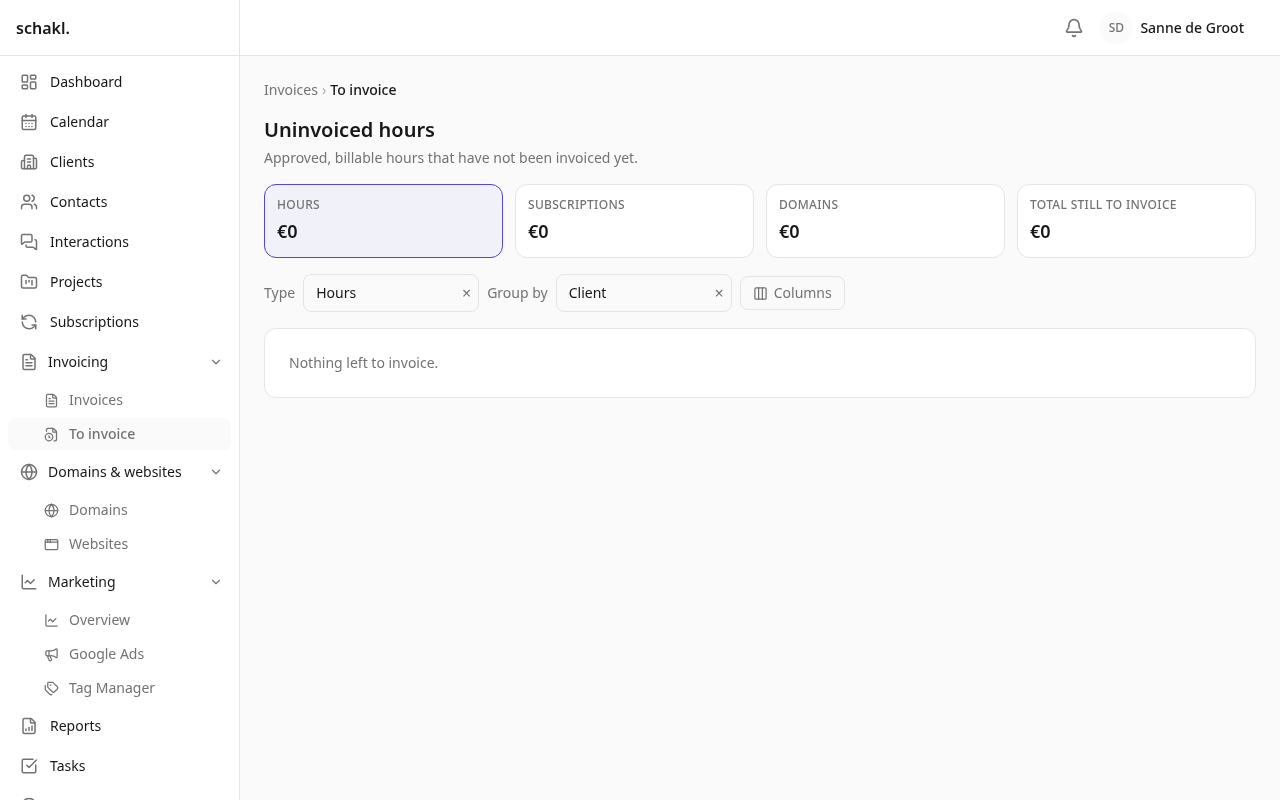
Section titled “To invoice, UBL and the client portal”Facturatie → Nog te factureren shows everything still open: four tiles (Uren, Abonnementen, Domeinen, Totaal nog te factureren) that always count the whole picture, over a list you filter by Soort (kind) and group. Hours group by day, week, month, year, client, project or employee; the recurring half by client, month or kind. Group by client and each group carries a Factuur maken (create invoice) link.
Every issued invoice downloads as UBL 2.1 for Exact Online, SnelStart, Moneybird or e-Boekhouden, and that is the whole accounting story today: the Boekhouding screen says itself that no live connectors are installed. A client with a portal login sees Mijn facturen (my invoices): only the issued invoices of their own companies, with the same PDF you send. Drafts do not exist for them, and quotes stay internal.
Permissions
Section titled “Permissions”Nearly everything below defaults to the Beheerder (Administrator) role only. An Eigenaar
(Owner) always holds everything, and a Medewerker (Member) holds none of it until you grant it
under Instellingen → Rollen (Settings → Roles). Two permissions are the exception:
invoicing.invoice.read and invoicing.payment.link also default to the Klant (Client) role,
but only in their narrow form, so only for that client’s own invoices.
| Permission | What it opens |
|---|---|
invoicing.invoice.read | View invoices. It has two depths: the narrow one reaches documents only, the broad one also your company and bank details, the price list, the templates and the To-invoice backlog. |
invoicing.invoice.write | Create and edit invoices |
invoicing.invoice.send | Send invoices and payment reminders |
invoicing.invoice.delete | Delete draft invoices |
invoicing.quote.read / .write / .send / .delete | The same for quotes |
invoicing.payment.write | Register payments |
invoicing.payment.link | Start an online payment |
invoicing.settings.manage | Manage invoicing settings |
invoicing.template.author | Write custom invoice templates |
The Klant (Client) role deliberately holds only that narrow read and the ability to start a
payment on its own invoice. Connecting a Mollie account is a separate permission: mollie.settings.manage.
Good to know
Section titled “Good to know”- Issued is issued. Amounts can no longer change; you correct with a credit note. The process around it stays editable: reference, notes, due date, template, document language, exchange rate and pausing reminders.
- Delete is draft-only. An issued invoice is cancelled instead, and cancelling refuses while payments are registered against it or a credit note stands opposite it.
- A time entry sits on one invoice, ever. Delete or cancel an invoice and exactly those entries come free again; a second document claiming the same subscription period or domain year is refused.
- Documents do not follow your settings. A line freezes its VAT rate, an issued document the client’s address block. Renaming a rate or moving a client never rewrites what a client already received.
- Formatting follows the document, not the reader, and another currency is fine: the document is entirely in its own currency, and the exchange rate exists only so the summary tiles can be added up.
- The QR code is off by default and encodes the invoice’s page in the client portal, never a checkout link: such a link is a bearer key and does not belong on printed paper.
- Invoices and quotes do not travel as a spreadsheet; the UBL download is their way out.