

Contacts
Contacts are the people at your clients — the account owner, the marketer, the webmaster. Your own colleagues are not among them; you manage those under Instellingen → Team & gebruikers (Settings → Team & users). One person appears once in the address book and can be attached to as many clients as needed.
Where to find it
Section titled “Where to find it”- Main menu Contactpersonen (Contacts): the whole address book.
- The Contactpersonen panel on every client page: the people of that one client.
- Instellingen → Contactsoorten (Settings → Contact types): the kinds of contact you distinguish.
The list
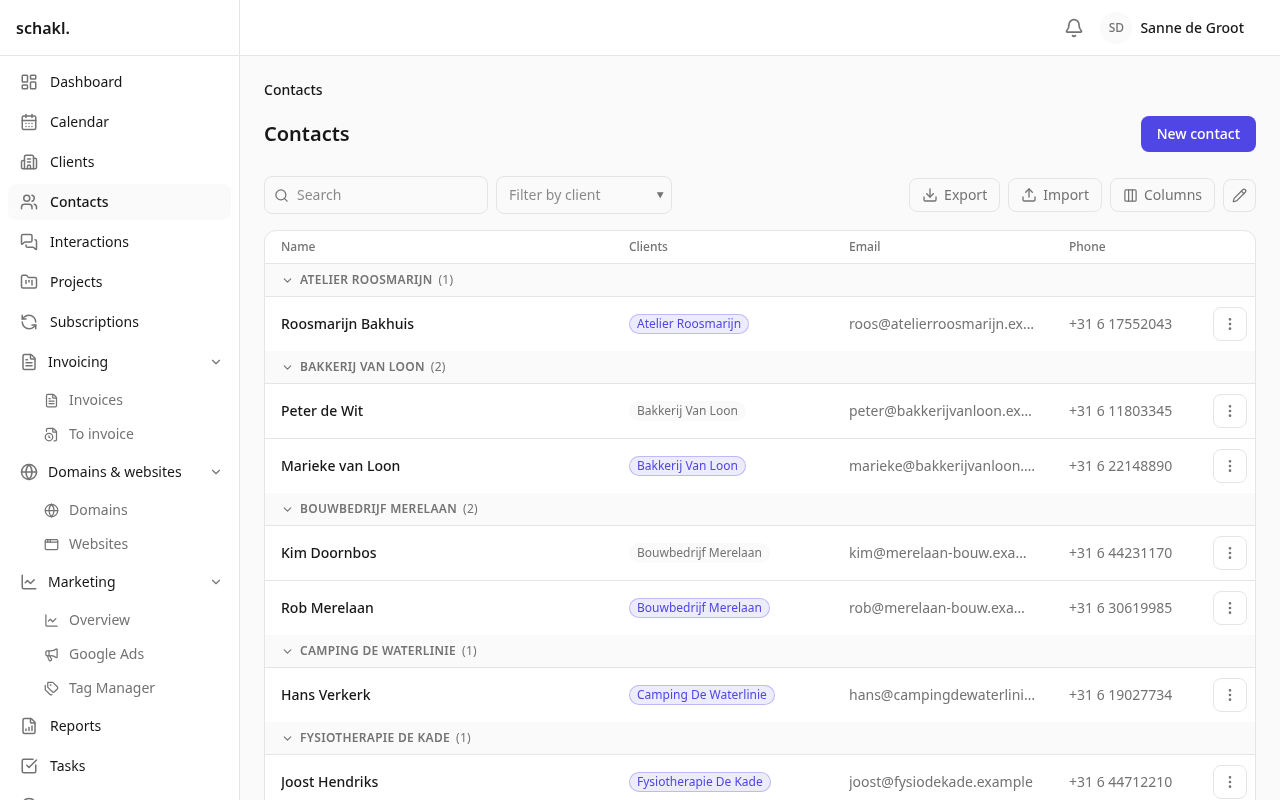
Section titled “The list”The list is grouped by client, alphabetically, with Zonder klant (No client) last for people attached to nobody. Someone who belongs to two clients is listed under both, so you find a person where you would look for them rather than where the system filed them. The client sections count only the contacts on the page you are viewing, and the list says so.
Above the list sit the search box and Filter op klant (Filter by client); as soon as you have contact types, a row of chips appears to filter by type. On the right are the column picker, Export and Import, and the ✎ that switches the selection checkboxes on. A client chip in a row is brand-coloured when this person is the primary contact there.
Recording a contact
Section titled “Recording a contact”Fields: Voornaam (First name, required), Achternaam (Last name), E-mailadres
(Email), Telefoon (Phone, with a country picker — a national number is read in your
organisation’s country), Functie (Job title) and Notities (Notes). Notes are rich text
where @ mentions a colleague or contact and # refers to a task. Custom fields you defined for
contacts under Instellingen → Aangepaste velden (Settings → Custom fields) appear below them,
and as columns in the list.
An email address already held by another contact is refused: “Er bestaat al een contactpersoon met dit e-mailadres.” Two cards for the same person are worse than one error message.
Attaching to clients
Section titled “Attaching to clients”The top of the contact page carries the Klanten (Clients) block, one chip per client. Attaching, detaching and promoting to primary live in edit mode: ⋯ → Bewerken (Edit). The Klant toevoegen… (Add client…) field searches existing clients and, on an unknown name, offers the full Nieuwe klant (New client) form; once saved, the new client is attached straight away.
From the client’s side you do the same in the Contactpersonen panel, which has its own ⋯ → Bewerken. Its search field queries the whole address book as you type, and a name that does not exist yet opens the full create form and attaches the person in one step.
A client’s first contact automatically becomes the primary one. A later link never quietly displaces it; you switch it yourself, with Als primair instellen (Make primary).
Contact types
Section titled “Contact types”Under Instellingen → Contactsoorten you manage the kinds of contact somebody can be for a client: client contact, technical contact, billing, whatever you distinguish. Each type carries a Dutch and an English label, an ordering and an active flag. Deleting a type leaves the links intact — they simply carry no type any more.
The type belongs to the link between person and client, not to the person: the same man can be the client contact at Acme and the technical contact at Beta.
Several at once
Section titled “Several at once”The ✎ in the toolbar switches the checkboxes on and puts the actions beside itself. For contacts there are two: attach a selection to a client, and delete a selection. Detaching is deliberately not offered here; you do that on the person, where you can see which link you are breaking. Deleting removes the person from every client they are attached to.
Import & export
Section titled “Import & export”Contacts travel as Contactpersonen, through the buttons beside the column picker. The file
upserts on email address; a row without one always creates someone new. Columns:
first_name (required), last_name, email, phone, job_title, notes and company (exact
client name or id), plus your own custom fields. An empty company cell never detaches anyone.
A client list may carry the contact person in the same row: contact_first_name,
contact_last_name, contact_email, contact_phone and contact_job_title belong to the
Klanten (Clients) import. Those columns only appear for someone who may write contacts, and
an empty cell never wipes anything. See Import & export.
Client portal
Section titled “Client portal”If you run the client portal module, the contact page carries the Klantportaal (Client portal) card: Uitnodigen voor portaal (Invite to portal), Toegang uitschakelen (Disable access) and Inloggen als deze contactpersoon (Sign in as this contact). The last one shows you the portal exactly as the client sees it, for half an hour. It is recorded on this contact’s activity trail, and everything you do meanwhile carries your name alongside.
Permissions
Section titled “Permissions”Set per role under Instellingen → Rollen (Settings → Roles). By default:
| Permission | What it does | Held by default |
|---|---|---|
contacts.contact.read | View contacts | Administrator, Member, Client |
contacts.contact.write | Create and edit | Administrator |
contacts.contact.delete | Delete | Administrator |
contacts.link.write | Attach to clients | Administrator |
contacts.type.read | View contact types | Administrator, Member, Client |
contacts.type.manage | Manage contact types | Administrator |
So a Member may only read by default. If you want your team creating contacts, tick
contacts.contact.write and contacts.link.write on that role. Export and import are separate
permissions (impex.export, impex.import) and default to Admin only.
Good to know
Section titled “Good to know”- The bottom of the contact page carries the activity trail: who changed what, when. If the colleague who did it leaves, their name stays on the trail.
- A login holding the Client role only ever sees the contacts of its own companies; the whole address book is out of reach for them.
- A portal login attached to no company at all cannot add a contact — there would be no company to attach them to, and the message says exactly that.
Read next
Section titled “Read next”- Clients — the file that hosts the Contacts panel
- Interactions — the timeline these people show up on
- Import & export