

Roles and permissions
An intern may log hours but not see invoices; your office manager administers the team but has no business in the marketing figures. In schakl. you write that down as roles you compose yourself: a role is a list of ticked permissions, and a person may do exactly what their roles allow between them.
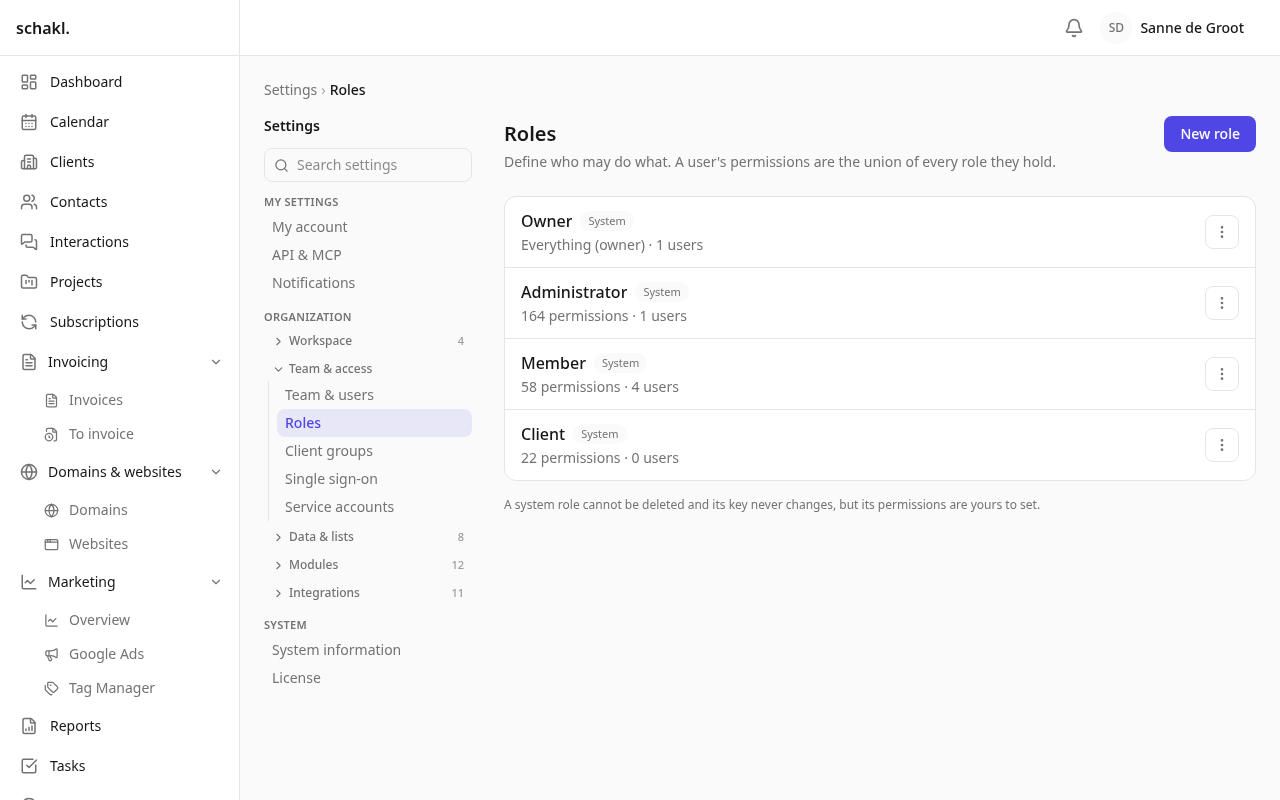
Where to find it
Section titled “Where to find it”Three screens, all in the “Team & toegang” (Team & access) group:
- Instellingen → Rollen (Settings → Roles): the roles themselves and their permissions.
- Instellingen → Team & gebruikers (Team & users): who holds which role.
- Instellingen → Klantgroepen (Client groups): which clients someone can see at all. That is a different question — see below.
How it adds up
Section titled “How it adds up”The screen puts it in one sentence: “Bepaal wie wat mag. De rechten van een gebruiker zijn de optelsom van al hun rollen.” — decide who may do what; a user’s permissions are the union of every role they hold. So one person may hold several roles and gets whatever any of them allows. Nothing is inferred: a permission you do not tick is refused.
The four roles that ship with it
Section titled “The four roles that ship with it”| Role | What its description says |
|---|---|
| Eigenaar (Owner) | “Volledige toegang tot alles.” — full access to everything. |
| Beheerder (Administrator) | “Beheert het bureau, de medewerkers en alle gegevens.” — manages the agency, its people and all data. |
| Medewerker (Member) | “Leest mee, werkt aan eigen taken, uren en verlof.” — reads along; works on their own tasks, hours and leave. |
| Klant (Client) | “Externe klantgebruiker: alleen lezen.” — external client user, read-only. |
These four are system roles. They cannot be deleted and their key never changes, but their permissions are yours to set. With one exception: the Owner always holds everything. The screen explains why: “De eigenaar heeft altijd alle rechten. Daardoor blijft een fout elders herstelbaar.” — that is what keeps a mistake made anywhere else fixable.
The Administrator starts with every permission there is, but as a written-out list rather than a blank cheque. So you can untick things, for instance to keep invoicing with one person.
Editing a role
Section titled “Editing a role”- Open Instellingen → Rollen and click the role.
- At the top are Naam (Name) and Omschrijving (Description), fillable per language with the language toggle beside them.
- Below that sits Rechten (Permissions): one collapsible block per module. Each block has Alles aanvinken (Select all) and Wissen (Clear).
- There is one Opslaan (Save) at the bottom for the whole screen.
The role’s key sits beside its name in a grey box. It is fixed and never follows a rename.
Off, Own only, Anyone’s
Section titled “Off, Own only, Anyone’s”Most permissions are a tick box. Some offer three choices instead: Uit (Off), Alleen eigen (Own only) and Van iedereen (Anyone’s), under the line “Op wiens gegevens dit van toepassing is.” — whose records this applies to. That exists because “may edit hours” can mean two very different things.
You will meet it on, among others, Urenregels bekijken (view time entries), Uren schrijven en bewerken (log and edit time), Taken bewerken (edit tasks), Taken inplannen (schedule tasks), Verlofaanvragen bekijken (view leave requests), Verlof aanvragen en bewerken (request and edit leave), Contactmomenten vastleggen en bewerken (log and edit interactions), Uurtarieven bekijken (view hourly rates) and Personeelsdossier bekijken (view the employee dossier). On all of those a Medewerker sits at Alleen eigen by default and a Beheerder at Van iedereen.
Facturen bekijken (view invoices) works the other way round: the Beheerder holds Van iedereen and the Klant role holds Alleen eigen, because a client should only ever fetch their own invoices.
Creating your own role
Section titled “Creating your own role”Press Nieuwe rol (New role) and type only a name; the key is derived from it and fixed afterwards. A new role starts empty, so you tick what it may do.
Often handier is Dupliceren (Duplicate) in the ⋯ menu beside an existing role: it copies that role’s permissions into a new one. That is how you build a “Senior medewerker” who may slightly more than a Medewerker, without loosening the shipped role itself. Duplicating the Owner still gives you an empty role: its “everything” is not a permission you can hand out.
Assigning roles
Section titled “Assigning roles”Under Instellingen → Team & gebruikers, expand a team member. There you get Rollen with a tick box per role, below it Effectieve rechten (the resolved list, each with the scope it resolved to) and one Rollen opslaan button.
Client visibility is a separate question
Section titled “Client visibility is a separate question”Permissions decide what someone may do; client groups decide which clients. Under Instellingen → Klantgroepen: “Beperk welke klanten een teamlid kan zien. Een lid zonder groepen ziet elke klant.” — restrict which clients a team member can see; a member without groups sees every client.
- A group is a set of clients. Tick a team member into one or more groups and they see only those groups’ clients.
- Anyone assigned to no group simply sees everything.
- “Eigenaren worden nooit beperkt.” — owners are never restricted.
- A restricted member gets a Beperkte zichtbaarheid (Restricted visibility) badge in Team & gebruikers.
You cannot lock yourself out
Section titled “You cannot lock yourself out”Any change that would leave nobody able to administer roles is refused: “Dit is de laatste rol die rollen kan beheren; de organisatie zou zichzelf buitensluiten.” That covers unticking the permission, deleting the role, and taking the role away from the last person who holds it.
Nor may anyone be left with no role at all: “Elke gebruiker moet minstens één rol houden.”
Permissions
Section titled “Permissions”| Permission | What it opens | Default |
|---|---|---|
settings.roles.manage | Instellingen → Rollen: managing roles and permissions | Administrator |
members.member.read | Viewing Instellingen → Team & gebruikers | Administrator |
members.member.write | Inviting, changing, removing and saving roles | Administrator |
companies.group.manage | Instellingen → Klantgroepen | Administrator |
The Owner holds all four through its “everything”.
Good to know
Section titled “Good to know”- Switching a module on later brings its own permissions with it. They are added once to the shipped roles, so a new module is not immediately invisible to your staff. Roles you created yourself do not get them: you tick those yourself.
- A permission you unticked stays unticked. Nothing is ever put back.
- Controls you may not use are not drawn at all. If your screen lacks an edit button a colleague has, that is a role difference.
- The Klant role is the role of an external login. Someone holding it sees only the clients they are linked to by default; linked to nothing, they see nothing, and Team & gebruikers labels the account Ziet geen klanten (Sees no clients).