

Marketing
Every client has their own Analytics property, Search Console site and Ads account, and they all live somewhere else. The marketing module links them to the client in schakl., pulls the daily figures overnight, and shows them where the rest of the client record already is.
Where to find it
Section titled “Where to find it”- Marketing in the main nav: pick a client at the top and you get exactly the same dashboard the client’s own page shows.
- The Marketing panel on the client page, with a link above it to that client’s full marketing tab.
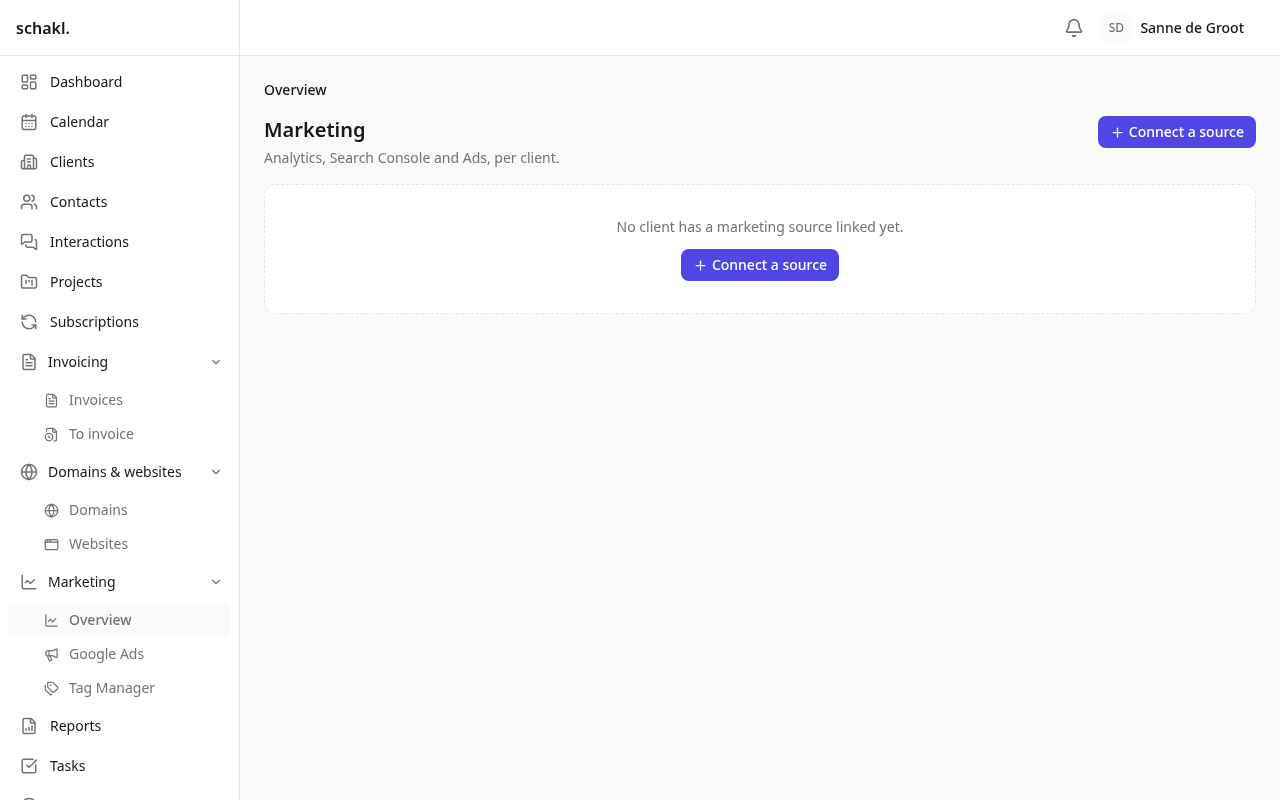
- Overzicht → Marketing (Overview → Marketing): one row per linked client.
- Instellingen → Marketing (Settings → Marketing): the Google Ads-ontwikkelaarstoken (Google Ads developer token) and the SE Ranking API-sleutel (SE Ranking API key).
Marketing is a licensed module; switch it on under Instellingen → Modules (Settings → Modules). See Licenses.
Setting it up
Section titled “Setting it up”-
Enable the Google Workspace module and fill in your own Google Cloud project’s OAuth client under Instellingen → Google Workspace. In that same project, enable the APIs this module actually calls: Google Analytics Admin API and Google Analytics Data API (enabling only the Data API leaves the property picker dead while everything else looks configured), the Google Search Console API and the Google Ads API.
-
Under Instellingen → Marketing, fill in the Google Ads-ontwikkelaarstoken. You create one in the API Center of your Google Ads manager account. Without it, the Ads picker says a developer token is required.
-
Connect your own Google account: Instellingen → Mijn account (Settings → My account), card Google-account, button Google koppelen (Connect Google). If you hold the permission to manage marketing links, the marketing scopes are folded into that same consent: one trip through Google’s screen, not three.
-
Open a client, use the ⋯ menu on the Marketing panel and choose Bewerken (Edit). Pick an account per source in Analytics-property, Search Console-site and Ads-account. If the client has several websites, first choose under Koppelen aan website (Link to website) which site the link belongs to, or leave it on Hele klant (Whole client).
What the dashboard shows
Section titled “What the dashboard shows”Per linked source, a row of KPIs with the change against the previous period, and a sparkline. At the top you pick the period: Laatste 30 dagen (Last 30 days), Deze maand (This month), Dit kwartaal (This quarter), Laatste 90 dagen (Last 90 days) or Laatste 12 maanden (Last 12 months), each compared with the previous period.
| Source | Figures |
|---|---|
| Google Analytics | Sessions, Users, New users, Key events, Conversions, Engagement, Revenue |
| Search Console | Clicks, Impressions, CTR, Average position |
| Google Ads | Cost, Clicks, Impressions, Conversions, Conversion value |
Below each source sit the drill-downs. These are fetched live from the source (and kept for about an hour): Top pages, Channels, Devices and Key events by event from Analytics; Top queries, Top pages and Biggest movers from Search Console; Campaigns from Ads.
The layout the client sees
Section titled “The layout the client sees”The dashboard carries an Indeling bewerken (Edit layout) button. Inside it you drag tiles to reorder them, hide them (hidden tiles wait in a strip underneath), rename them per language, switch drill-downs on or off, pick the Standaardgrafiek (default chart metric) and hide a whole source with Tonen aan klant (Show to client). Changes save immediately. This layout is what the client sees in the client portal.
Under Sleutelgebeurtenissen (Key events) you give each GA4 event a name the client understands; the GA4 event name stays the reference. An event that has not occurred yet can be added on its raw GA4 name.
Syncing
Section titled “Syncing”Every link carries a status: Gesynchroniseerd (Synced), Eerste synchronisatie loopt (First sync running), Synchronisatiefout (Sync error) or Verbinding verbroken (Connection lost), with the date of the last sync beside it. A nightly job collects the daily figures; a new link additionally gets a one-off backfill of a little over thirteen months, so sparklines and the year-on-year comparison work straight away.
Unlinking does not delete the history: the link is deactivated, and linking the same property again switches it back on.
Permissions
Section titled “Permissions”| Permission | What it opens | Default roles |
|---|---|---|
marketing.metrics.read | View marketing metrics (panel, tab, portal tile) | Administrator, Member, Client |
marketing.link.manage | Manage marketing links, and Instellingen → Marketing | Administrator |
marketing.overview.read | The cross-client marketing overview | Administrator |
Set these per role under Instellingen → Rollen (Settings → Roles).
Good to know
Section titled “Good to know”- A link syncs through one colleague’s Google account, and every screen names who that is. When that person leaves, the client’s numbers stop arriving until somebody else takes the link over.
- A disabled API and an expired grant both come back as an error from Google, and they do not have the same cure. schakl reads Google’s own reason out of the response: if the API is off in the Google Cloud project, reconnecting does not help and is deliberately not offered; if the scopes are missing, reconnecting is exactly the fix.
- Manager accounts (MCC) are expanded. Google only reports direct grants, so schakl walks the hierarchy and offers the client accounts underneath. The manager account itself is never selectable, because Google refuses metric queries against one.
- An expired licence makes the module read-only: linking, unlinking and the settings refuse, and the nightly sync stands down. The panel, tab and overview keep showing the figures already collected.